
Tutorial
How to make an AI 3D model work in Roblox (Meshy, Tripo, Blender)
Make Meshy or Tripo models work in Roblox: decimate in Blender, bake one texture at 1024 px, scale to studs, set the pivot, fix weights and export FBX right.
Updated 9 min readBy the Proppo team
On this page
Quick answer
Clean the mesh in Blender, decimate it to a budget of about 4,000 triangles for a pet (Roblox’s hard cap is 20,000), bake or resize one texture to 1024 px or less, scale it so 1 unit equals 1 stud with the pivot at the bottom center, keep 4 bone influences per vertex and export FBX with FBX Unit Scale.
Key takeaways
- Roblox caps a mesh at 20,000 triangles, but pets that appear many times work best at about 4,000 (2,000 for mobile-first games).
- Raw AI meshes usually fail on five points: triangle count, texture size, scale, pivot and messy geometry.
- In Blender: merge by distance, decimate with Collapse, bake or resize to one texture of 1024 px or less, scale so 1 unit = 1 stud, origin at the bottom center.
- Rigged models need a root bone at the origin with no weights and at most 4 bone influences per vertex.
- Export FBX with Apply Scalings set to FBX Unit Scale, Path Mode Copy, Embed Textures on and Add Leaf Bones off, then import with Scale Unit set to Studs.
AI 3D generators such as Meshy and Tripo turn a prompt or picture into a textured model in minutes. Dropping that model straight into Roblox Studio rarely goes well: it comes in at the wrong size, floats above the floor, carries far more triangles than a pet needs and sometimes arrives without its texture. This tutorial fixes each of those in Blender, step by step, with the export and import settings Roblox documents. Settings are checked against the Roblox Creator Hub as of October 2026.
Why do AI 3D models fail in Roblox?
Generators optimize for a good-looking render, not for a game engine: they don't know about Roblox's studs, triangle budgets, single-material MeshParts or rig rules. Each of those needs a fix before import.
Too many triangles
- What you see in Studio
- Import error above 20,000 triangles, or lag with many copies
- Fix
- Decimate to a budget (step 2)
Large or packed textures
- What you see in Studio
- Big uploads, blurry or missing roughness and metal
- Fix
- One color map at 1024 px or less, separate grayscale maps (step 3)
Arbitrary scale
- What you see in Studio
- A pet the size of a house, or of a coin
- Fix
- 1 Blender unit = 1 stud, FBX Unit Scale (steps 4 and 6)
Pivot in the middle
- What you see in Studio
- Model sinks halfway into the floor or floats
- Fix
- Origin at the bottom center (step 4)
Messy geometry
- What you see in Studio
- Holes, dark patches, several parts
- Fix
- Merge by distance, recalculate normals, one material (step 1)
Hard limits come from Roblox's modeling specifications: no mesh over 20,000 triangles and no vertex influenced by more than 4 bones. Roblox's texture specifications allow textures up to 4096 × 4096 pixels since 2026 (parts of the page still say 1024) and require OpenGL-style tangent-space normal maps. For a pet, 1024 px is already more than players see.
Step 1: Import and clean the mesh
In Blender, set Scene Properties > Units > Unit System to None so Blender units line up with studs, as Roblox's Blender guide recommends. Import the GLB with File > Import > glTF 2.0. Then, in Edit Mode with everything selected:
- Mesh > Clean Up > Merge by Distance. AI meshes often have duplicate vertices along UV seams; merging closes the cracks.
- Select > Select Loose, then delete floating bits the generator left around the model.
- Mesh > Normals > Recalculate Outside to fix faces that render dark or see-through.
- If the model came in as several objects, join them with Ctrl+J. One mesh with one material imports as one MeshPart.
Step 2: Reduce triangles
Add a Decimate modifier in Collapse mode. Its panel shows the face count; set the ratio to target ÷ current (for example 4,000 ÷ 16,000 = 0.25), turn on Triangulate and apply it. Collapse keeps the UV map, so the existing texture still fits; check the seams for stretching. Pick the target from what the model is:
| Asset | Triangles | Texture |
|---|---|---|
| Pet | 4,000 | 512 px |
| Pet (mobile-first) | 2,000 | 512 px |
| Egg | 1,500 | 512 px |
| Prop | 6,000 | 1024 px |
Proppo's presets per asset type. These are budgets for games that show many copies, not Roblox limits; the hard cap is 20,000 triangles per mesh.
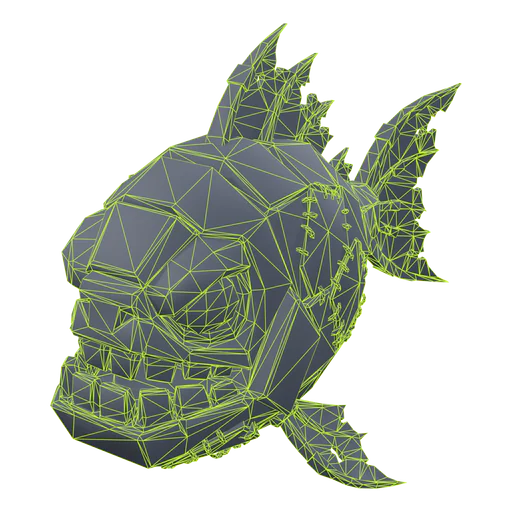
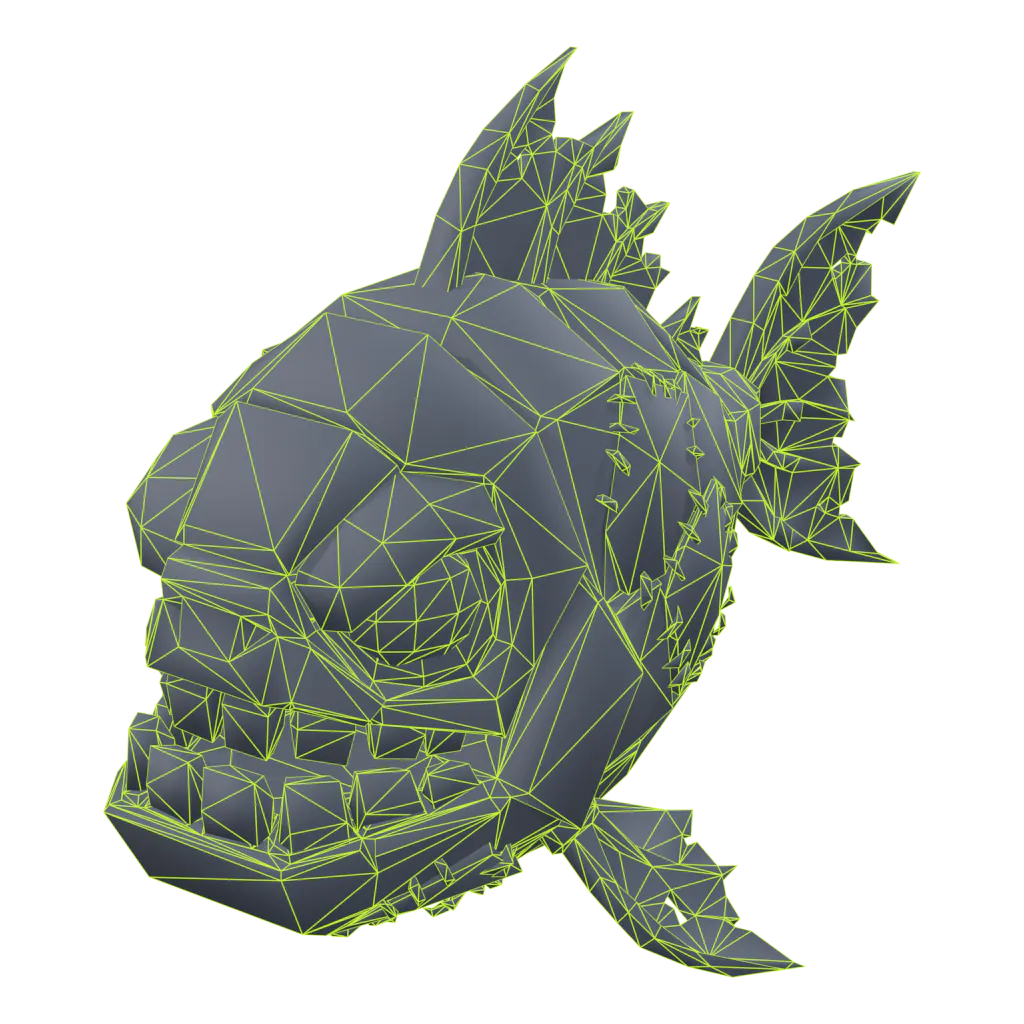
The Zombie Piranha pet from our homepage before and after Proppo's Roblox optimize at the pet preset: 51% fewer triangles with the same silhouette.
Check the result from the distance the game camera will see it, not in a close-up. If decimation chews up thin parts such as antennae or fins, lower the ratio less there: decimate the body and the details separately, then join them.
Step 3: Bake one texture at 1024 or less
A MeshPart uses one material, so the goal is one UV map and one color texture. If you only decimated, open the texture in the Image Editor and use Image > Resize to 1024 px or less (512 px is plenty for most pets), then save it as PNG.
If you remeshed, or the model has several materials, bake:
- Unwrap the low-poly mesh (UV > Smart UV Project) and add a new 1024 × 1024 image in an Image Texture node of its material.
- Switch the render engine to Cycles. In the Bake panel choose Diffuse and leave only Color ticked under Contributions.
- Select the original high-poly model, then the low-poly one, tick Selected to Active, set a small Extrusion and press Bake. Save the image.
- Optional: bake a Normal map the same way to keep surface detail. Roblox reads OpenGL-style normal maps, which is Blender's convention.
Generators often deliver PBR textures where roughness and metalness are packed into one image, as glTF does. Roblox's SurfaceAppearance wants them as separate grayscale images; split the channels or keep only the color map. See texture baking in the glossary.
Step 4: Scale to studs and set the pivot
With Unit System None and FBX Unit Scale on export, 1 Blender unit becomes 1 stud. Scale the model to the height you want: a default avatar is about 5 studs tall, so pets usually land at 2 to 4 studs (Proppo uses 3 for pets and 3.5 for eggs).
- In Edit Mode, select the lowest vertices, press Shift+S > Cursor to Selected, then move the cursor to the center in X and Y.
- In Object Mode, Object > Set Origin > Origin to 3D Cursor. The pivot is now at the bottom center.
- Move the object to 0, 0, 0 (Alt+G) and face its front the way your other models face.
- Ctrl+A > All Transforms, so location, rotation and scale are baked into the mesh.
Step 5: Check bones and weights
Skip this step for static models. For a rig, Roblox's specifications require frozen bones (scale 1, rotation 0), a root bone at 0, 0, 0 with no influences, and at most 4 bones per vertex. In Weight Paint mode use Weights > Limit Total with a limit of 4, then Weights > Normalize All.
Step 6: Export FBX with Roblox settings
Select the mesh (and armature, if any) and use File > Export > FBX. These are the settings from Roblox's export requirements:
Limit to
- Value
- Selected Objects
- Why
- Keeps cameras, lights and the high-poly source out
Transform > Apply Scalings
- Value
- FBX Unit Scale
- Why
- Roblox's recommended way to export at the same scale
Path Mode
- Value
- Copy, with Embed Textures on
- Why
- The texture travels inside the FBX
Armature > Add Leaf Bones
- Value
- Off
- Why
- Avoids extra end bones in the rig
Bake Animation
- Value
- Off, unless you export a clip
- Why
- Static models don't need animation data
Static models can also go out as GLB, which Roblox notes needs no extra scale settings. FBX is the safer choice once a rig is involved.
Step 7: Import into Studio and check
In Studio, use File > Import with Scale Unit set to Studs. Before placing the model, check:
- The importer shows no warnings in the hierarchy; hover any icon to read it.
- The model stands on the ground and is the right size next to a 5-stud avatar.
- The texture is there. If not, add a SurfaceAppearance and set its ColorMap.
- CollisionFidelity is Box or Hull for pets and small props, and CanCollide is off for pets that follow players.
The import guide explains every importer setting, and the triangle and texture guide covers budgets for phones.
What if the model still looks wrong in Roblox?
Most leftover problems trace back to one skipped step: transforms not applied, textures not embedded or weights over the limit.
It is 100 times too big or too small
Scale and units don't match. Use Apply Scalings FBX Unit Scale with Unit System None, and import with Scale Unit Studs.
The texture is missing or grey
Path Mode wasn't Copy with Embed Textures, or the mesh has several materials. Fix and re-export, or set a SurfaceAppearance.
Dark patches or holes
Flipped normals or unmerged vertices. Repeat step 1 and check with Blender's Face Orientation overlay.
The rig stretches when animated
Some vertices have more than 4 influences. Limit Total to 4 and normalize, especially after decimating.
Is there a faster way than doing this by hand?
Yes: tools built for Roblox run these steps automatically. Proppo is our own product: it generates the model with AI and then runs our own Blender pipeline on it.
That pipeline merges by distance, recalculates normals, decimates to the preset budget, limits skinned vertices to 4 normalized influences, triangulates, resizes textures to the preset size, scales to studs with the origin at the bottom center, applies transforms and writes an FBX with FBX Unit Scale, copied and embedded textures and no leaf bones. Optimize costs 5 credits, an auto-rig 10 credits and rarity variants 5 credits per set. Doing it by hand in Blender, as above, is free and gives you full control. For a broader comparison of generators, see AI 3D tools for Roblox and Roblox Cube vs AI generators.
Frequently asked questions
Can I put a Meshy or Tripo model straight into Roblox?
How many triangles should an AI model have for Roblox?
What texture size does Roblox use?
What are the best Blender FBX export settings for Roblox?
Should I decimate or remesh an AI model?
Get a model that is already Roblox-ready
Upload a picture or describe the model. Proppo generates it, decimates it to a Roblox budget, scales it to studs with a bottom-center pivot and exports an FBX that imports cleanly.
60 free credits when you confirm your email. No card needed.
Related guides
All guides Reference
Reference
Roblox triangle and texture limits for mobile-friendly pets
The hard limits, the budgets pet games actually use, and how to hit them without losing the silhouette.
5 min readUpdated October 31, 2026Read
 Tutorial
Tutorial
How to import a 3D model into Roblox Studio (FBX, textures, rigs)
3D Importer settings that matter, rigs and animations, textures and the usual import errors.
7 min readUpdated October 31, 2026Read
 Comparison
Comparison
Best AI 3D tools for Roblox pets & props (2026)
A ranked table of Proppo, Meshy, Nilo, Tripo, Roblox Cube, UEFN Central, Rodin and 3D AI Studio for pets, eggs and props.
6 min readUpdated October 31, 2026Read