
Tutorial
How to animate a pet in Roblox (idle, walk, fly)
Rig a pet, make idle, walk and fly loops, import and publish them, then play them from a script with AnimationController and Animator. Luau example included.
Updated 7 min readBy the Proppo team
On this page
Quick answer
To animate a Roblox pet, rig it with bones, make looping idle, walk or fly clips at 30 fps, and import the FBX into Studio with Rig Type set to Custom. Publish each clip from the Animation Editor with the account that owns the game, then play it through the Animator inside the pet's AnimationController from a script.
Key takeaways
- Pets animate through an AnimationController with an Animator inside it, not through a Humanoid.
- A Roblox rig needs its root bone at 0, 0, 0 with no weights, and each vertex can have at most 4 bone influences.
- Animate loops at 30 fps, the Animation Editor's default, and make the last pose match the first so the loop doesn't jump.
- Publish every clip with the account or group that owns the game, or it won't play in the live experience.
- Most pets need only two loops, an Idle and a walk or fly; a script switches between them based on the pet's speed.
A pet that breathes, wags its tail and flaps its wings feels alive in a way a floating statue never does. Getting there in Roblox takes a rig, a few looping clips, the publish step and a short script that picks the right clip. This guide covers that path for non-humanoid pets (four legs, wings, fins), with a Luau example. Studio details are as of October 2026.
How does pet animation work in Roblox?
A pet model gets an AnimationController with an Animator inside it. You publish each clip as an animation asset, load it through the Animator and play the resulting track from a script, as Roblox's Use animations guide describes for rigs without a Humanoid.
Player characters animate through a Humanoid. Pets usually don't have one. Instead, a model gets an AnimationController with an Animator inside it. You publish each clip as an animation asset, load it through the Animator into an AnimationTrack, and play, stop or speed up that track from a script.
The clip moves either Bone objects inside a skinned MeshPart (one mesh that bends) or parts joined by Motor6D joints. For AI-generated or sculpted pets, a skinned single mesh is the usual choice.
Step 1: Rig the pet with bones and weights
Rigging happens in a 3D tool such as Blender or Maya. You add a skeleton and paint how strongly each bone pulls on each vertex. Roblox's modeling specifications set a few hard rules:
- The root bone sits at 0, 0, 0 and has no influences.
- All bones are frozen: scale 1, 1, 1 and rotation 0, 0, 0.
- A vertex can be influenced by at most 4 bones.
- Every bone should have weighted vertices. The importer drops unweighted bones unless you turn on Keep Zero Influence Bones.
Pick the skeleton from the body plan: spine, legs, neck and tail for a four-legged pet, two or three bones per wing for a flyer, a bendy spine and fins for a fish. Keep chains short; every bone is one more thing to animate.
Step 2: Make the idle, walk and fly loops
Open the Animation Editor from the Avatar tab, select the rig and pose it on the timeline. Animations run at 30 frames per second by default. If you animate in Blender instead, bake the clips at 30 fps too. Most pets need only a few loops:
Idle
- What moves
- Breathing, slow tail or wing sway
- Tips
- Plays most of the time, so keep it calm. Two to four seconds is plenty.
Walk
- What moves
- Legs in a cycle, body bob per step
- Tips
- Animate one speed; the script scales it.
Fly
- What moves
- Wing flaps, body rising and dipping
- Tips
- Played slower, it can double as a hover idle.
Hatch or celebrate
- What moves
- A one-off jump or spin
- Tips
- Not looped.
Turn on Looping in the editor's playback controls. Looping does not blend the last keyframe back into the first, so copy the first keyframes to the end of the clip. Otherwise the pet twitches once per loop.
Step 3: Import the rig and its animations
Export the rigged pet as FBX and bring it in with File > Import. Set Rig Type to Custom. Studio adds the bones under the MeshPart and an AnimationController on the model. Since an August 2026 Studio update, animation data in the file is also saved automatically to AnimSaves in ServerStorage, so you no longer need a second import from the Animation Editor.
Clips in separate files go through the Animation Editor's importer (From File), which since early 2026 reads glTF as well as FBX and imports every clip in a file. Imported clips stay local until you publish them.
Step 4: Publish the animations
Open a clip in the Animation Editor, then set its priority with ⋯ > Set Animation Priority: Idle for the idle, Movement for walk and fly. A higher-priority track overrides a lower one on the bones they share, so the walk takes over while the idle keeps playing underneath. Then choose ⋯ > Publish to Roblox, give it a title and, if a group owns your game, pick the group as the creator. Copy the asset ID you get back.
Step 5: Play them from a script
Put this Script inside the pet model and paste your two asset IDs. It loops the idle, measures how fast the pet moves each frame, and plays the walk or fly loop while it is moving, sped up or slowed down to match.
-- Script inside the pet model (server side, so every player sees it)
local RunService = game:GetService("RunService")

local pet = script.Parent
local root = pet.PrimaryPart or pet:FindFirstChildWhichIsA("BasePart", true)
local controller = pet:FindFirstChildWhichIsA("AnimationController", true)
local animator = controller:FindFirstChildOfClass("Animator")
if not animator then
	animator = Instance.new("Animator")
	animator.Parent = controller
end

local function loadLoop(id, priority)
	local animation = Instance.new("Animation")
	animation.AnimationId = id
	local track = animator:LoadAnimation(animation)
	track.Looped = true
	track.Priority = priority
	return track
end

local idle = loadLoop("rbxassetid://0000000000", Enum.AnimationPriority.Idle) -- your Idle
local move = loadLoop("rbxassetid://0000000000", Enum.AnimationPriority.Movement) -- your Walk or Fly
idle:Play()

local MOVING = 1 -- studs per second that count as moving
local CLIP_SPEED = 10 -- speed the walk cycle was animated for
local lastPosition = root.Position
local moving = false

RunService.Heartbeat:Connect(function(dt)
	local speed = (root.Position - lastPosition).Magnitude / dt
	lastPosition = root.Position
	if speed > MOVING and not moving then
		moving = true
		move:Play(0.2)
	elseif speed <= MOVING and moving then
		moving = false
		move:Stop(0.3)
	end
	if moving then
		move:AdjustSpeed(math.clamp(speed / CLIP_SPEED, 0.5, 2))
	end
end)
Load each animation once and reuse the track. For a model outside a player's character, load and play the animations from a server Script so everyone sees them. If your game moves pets on each player's device instead, as many large pet games do, run the same logic in a LocalScript; then only that player sees those tracks.
Can you skip rigging and animating a pet by hand?
Yes, with an auto-rigger that knows non-humanoid bodies. It builds the skeleton and the first loops for you; you still import and publish the clips yourself.
Steps 1 and 2 are where most of the hours go. Proppo's rig (10 credits) builds the skeleton from a body template, weights the mesh within Roblox's 4-influence rule and adds two seamless clips, an Idle and a move loop, each 2 seconds at 30 fps:
| Template | Move clip |
|---|---|
| Four legsDogs, cats, dragons — spine, legs, tail | Walk |
| Two legsStanding pets and characters | Walk |
| FishSpine + fin chains, swim loop | Swim |
| Bird / flyerWing chains + body bob | Flap |
| Snake / wormOne long spine chain, slither loop | Wiggle |
| Jelly / squidTentacle chains, soft wobble | Swim |
| Simple bounceRoot + body, idle bob + bounce (eggs, props, items) | Bounce |
Auto-detect picks a template from the shape. Flyers get the Bird / flyer template with a Flap loop.
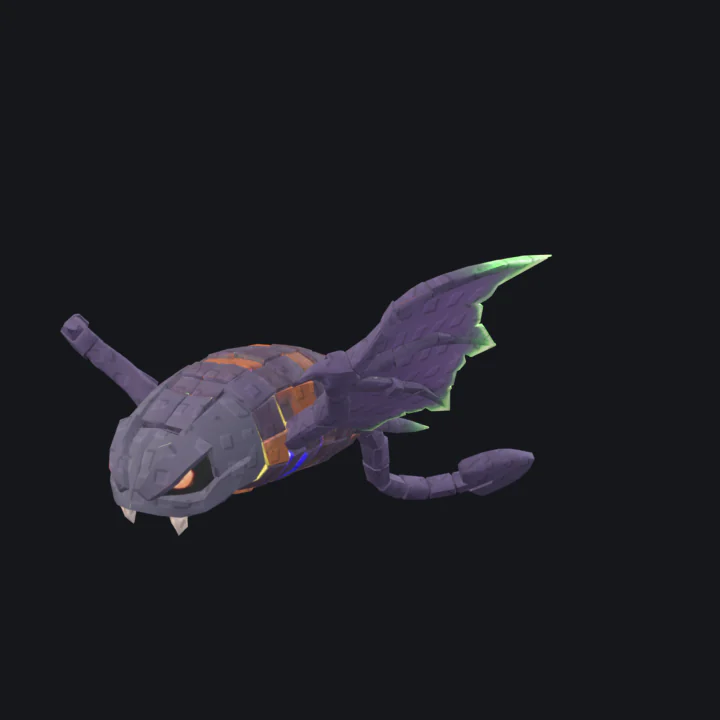
The clips come inside the FBX, so you still import and publish them yourself (steps 3 to 5), since animations must be owned by you or your group anyway. Extra clips such as a hatch jump are still hand work. The full pipeline is in our AI pet guide.
Why doesn't my Roblox pet animation play right?
The usual causes are ownership, equal priorities, a loop whose last pose doesn't match the first, too many bone influences, or a walk cycle that doesn't match the pet's speed.
Nothing plays in a live game
Check the owner of the animation (see step 4) and that the AnimationId is the published asset, not a local save.
The walk never shows
Both tracks probably have the same priority. Set the walk or fly clip to Movement and the idle to Idle.
The pet twitches once per loop
The last keyframe doesn't match the first. Copy the first pose to the end of the clip.
The mesh tears or stretches
Some vertices have more than 4 influences. Limit and normalize the weights in your 3D tool, then re-import.
The pet slides along the ground
The walk cycle doesn't match the pet's speed. Change CLIP_SPEED in the script to the speed the clip was made for.
Frequently asked questions
Does a Roblox pet need a Humanoid to be animated?
What frame rate should Roblox animations use?
Why does my pet animation play in Studio but not in the game?
Can I animate a pet without rigging it?
Get a pet that already moves
Describe a pet or upload a drawing. Proppo makes the model, sizes it for Roblox and rigs it with an Idle and a move loop at 30 fps.
60 free credits when you confirm your email. No card needed.
Related guides
All guides Tutorial
Tutorial
How to make a pet follow the player in Roblox (Luau script)
A paste-in client follow script, an AlignPosition version, formations, flying bob and jitter fixes.
9 min readUpdated October 31, 2026Read
 Tutorial
Tutorial
How to make a Roblox pet with AI (step by step)
Concept, 3D model, rig, rarity set and import: the whole pet pipeline in one walkthrough.
6 min readUpdated October 31, 2026Read
 Tutorial
Tutorial
How to import a 3D model into Roblox Studio (FBX, textures, rigs)
3D Importer settings that matter, rigs and animations, textures and the usual import errors.
7 min readUpdated October 31, 2026Read
 Comparison
Comparison
Roblox Cube vs AI 3D generators for game assets (2026)
Cube in Studio next to external generators: what each does well, and a workflow that uses both.
7 min readUpdated October 31, 2026Read